
Campaign Action
Oracle Marketing Cloud - Eloqua Twilio SMS Pro App Feature
Step 1: Add the Cloud Action
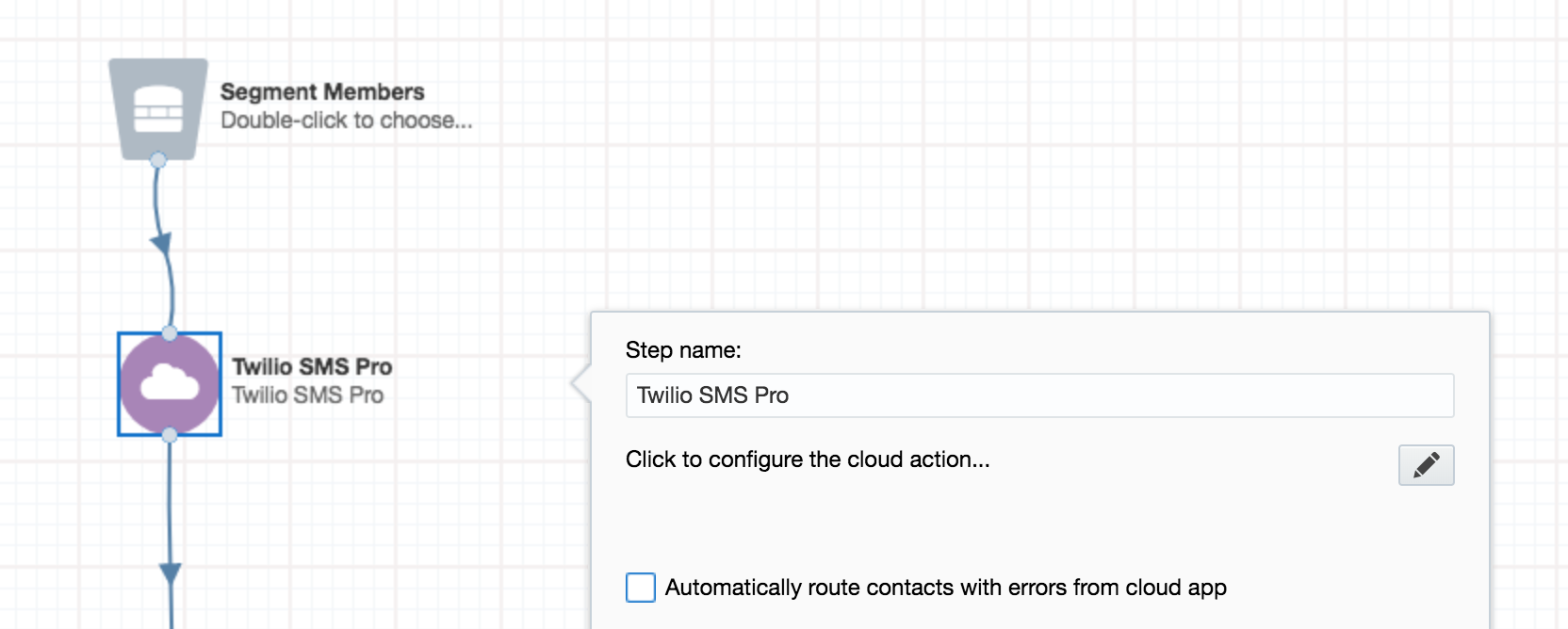
Within the Eloqua Campaign Canvas or Program Canvas, find the Twilio SMS Pro Cloud Action in the Actions menu area. Double-click on or drag the Twilio SMS Pro Cloud Action onto your canvas workspace.
Step 2: Set Message Settings
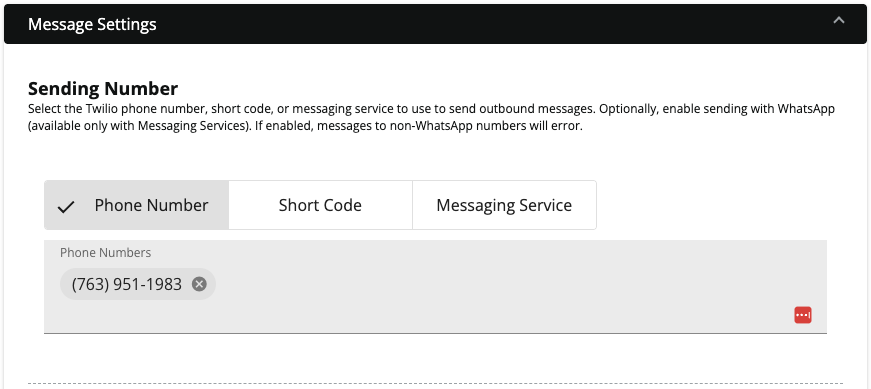
Select the Twilio Phone Number, Short Code, or Messaging Service that will be used to send your messages from. Note: Twilio Messaging Service is the recommended option.
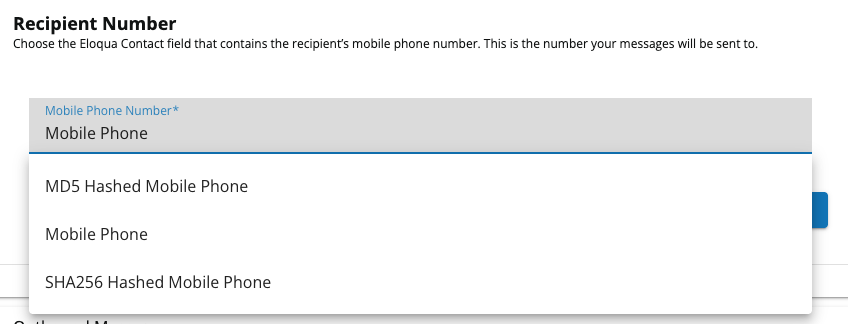
Select the Contact field that represents the phone number to which the message should be sent
(e.g. mobile phone number).
Custom Object Field Merges
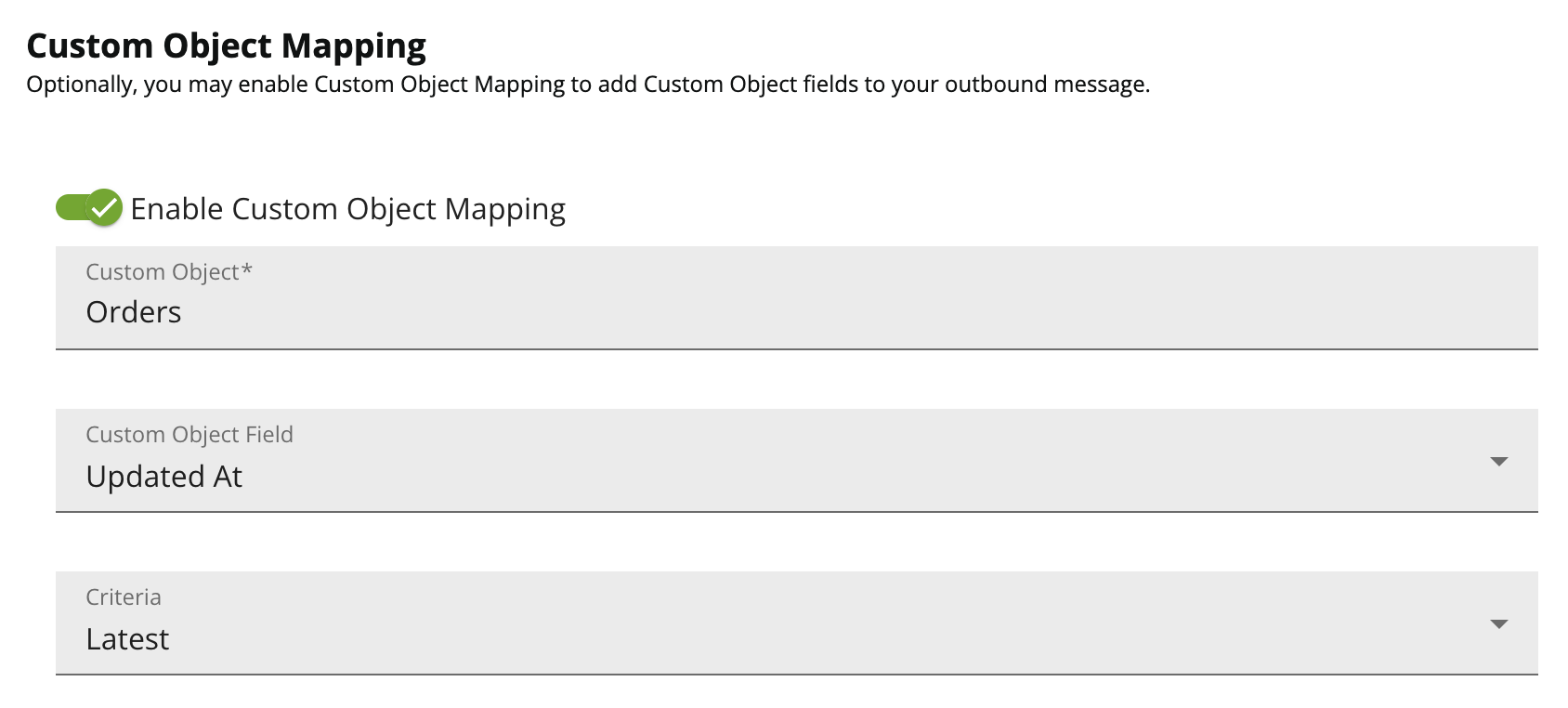
Optionally, enable Custom Object mapping to add fields from a Custom Object. To enable, toggle on the 'Enable Custom Object Mapping' toggle. Then, select your Eloqua Custom Object. Finally, select how the app should select the correct record if there are more than one mapped to a contact. The fields from the Contact Object will be available to personalize your text message in step 3.
Step 3: Create Text Message to be Sent
You can personalize your text message using Contact fields by dragging them from the list on the right into your message body. You have approximately 1600 characters.
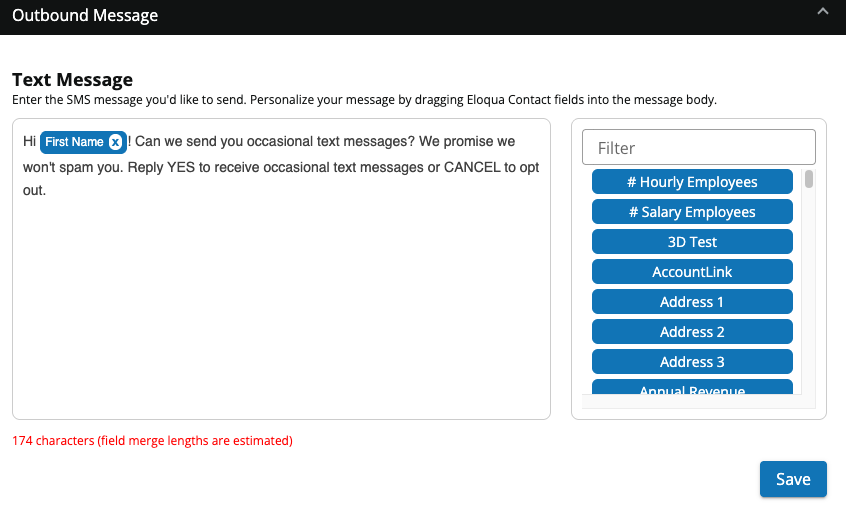
If you have enabled Custom Object field mapping in the Message Settings section, you can add Custom Object fields by selecting the Custom Object in the dropdown and dragging fields into your message the same as Contact fields.
Click Continue.
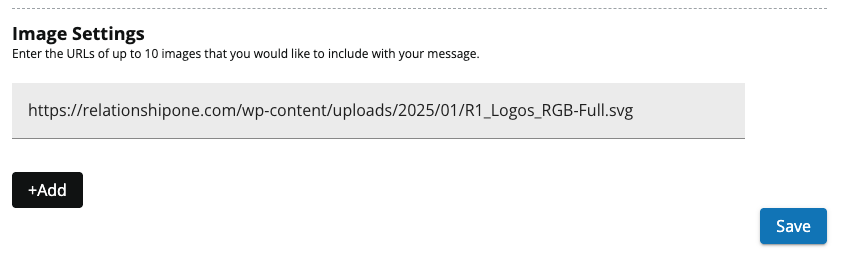
Optionally, add an image URL in the Image Settings section below your text message. The image will be passed to Twilio and added to the message as long as your twilio account is configured to do so.
Step 4: Reply Message Settings
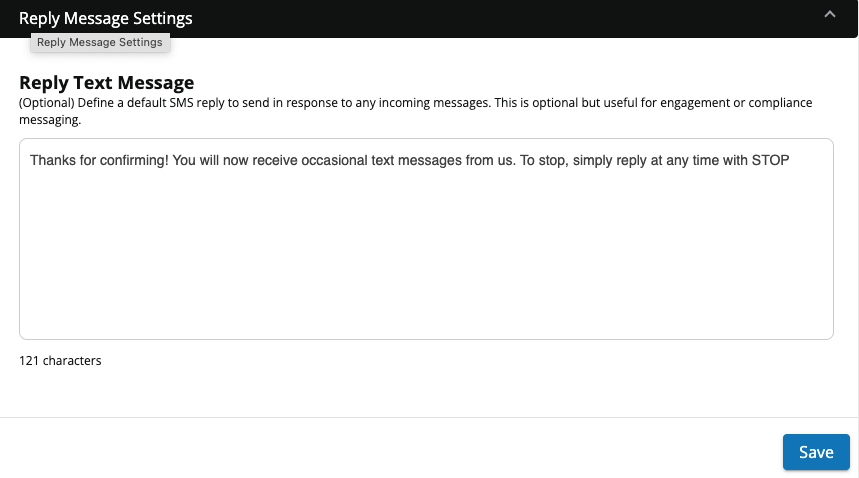
If you so desire, you may set up a reply message to be sent in response to any incoming message.
Click Continue.
Optionally, the Twilio SMS Pro app allows you to store any outbound or inbound reply text messages in an Eloqua Custom Object. If you do not want to use these features, click Continue to complete your app configuration. The Cloud Action will automatically enable when you activate the Campaign or Program.
Updated 8 months ago