

Building and Editing Drafts
With Write tools turned on for an Eloqua connection, your assistant can create and change drafts in Eloqua: emails, landing pages, forms, segments, campaigns, field merges and folders. Write tools are off for every new connection. Until you turn them on, the assistant can only read.
A person always launchesWrite tools create and change drafts only. Nothing in the Eloqua MCP app can activate, schedule or send a campaign or an email, and nothing can change contact data.
Turn On Write Tools
-
In the Eloqua MCP app, click Eloqua Connections under Settings.
-
Find the connection in the list and switch Write tools to On.
You'll see "Write tools are on: MCP clients can create, change and delete drafts on this connection." Switch it back to Off the same way.
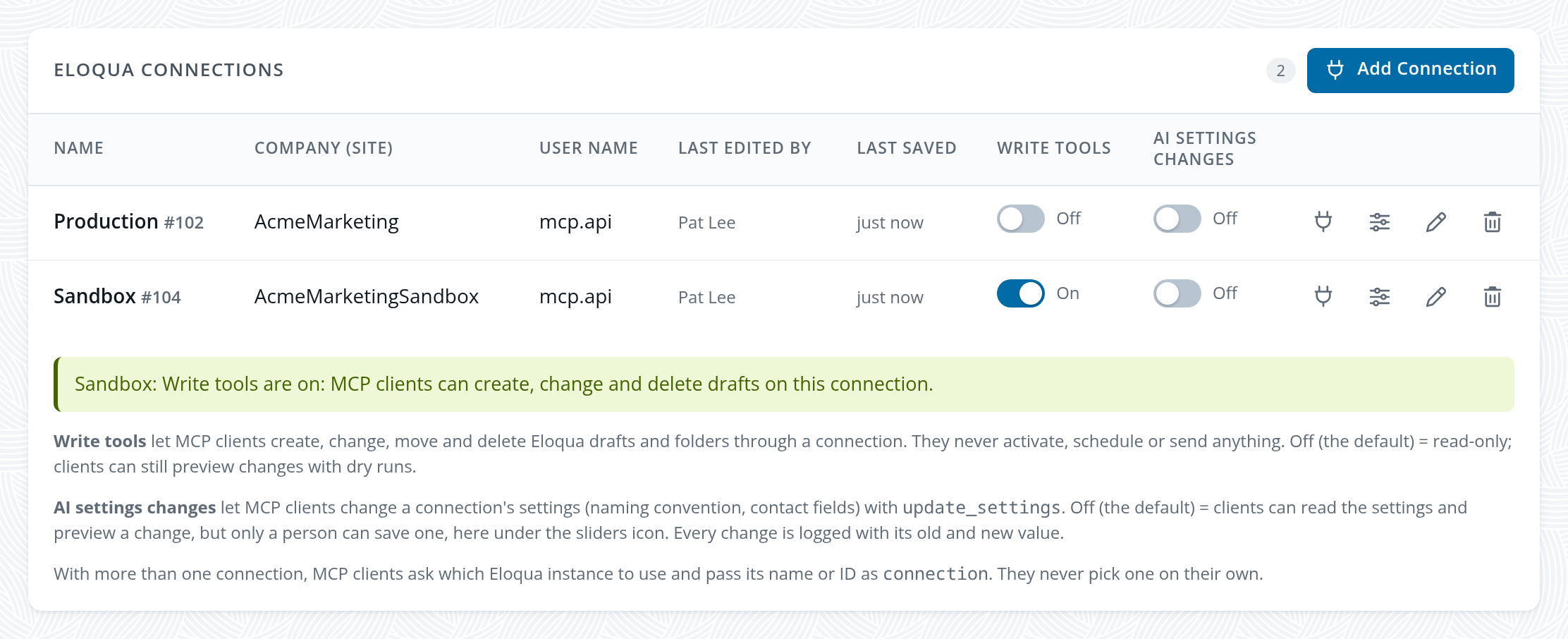
Before you turn it on, keep in mind:
- The switch belongs to one connection. Turning it on for
SandboxleavesProductionread-only. - It applies to every access token in your Organization. Anyone who can use the connection can then build through it.
- Any member of your Organization can change the switch, and each change is recorded in the Activity Log.
If you have a sandbox, start there.
If the list has no Write tools column, write tools are switched off for the whole service. Contact support.
What Your Assistant Can Build
| Asset | What it can do |
|---|---|
| Emails | Create an email from HTML with a subject, plain text, email group, sender and reply-to address. Change any of those on an existing email. |
| Landing pages | Create a page from HTML with a microsite and a path. Change the name, HTML, microsite or path of an existing page. |
| Forms | Create a form with its fields and a submit button, then add processing steps: update the contact, send a notification, redirect to a landing page, send an auto-reply email, add to a shared list, or subscribe to an email group. |
| Segments | Create a segment with filter criteria and shared lists, then get its member count. Add criteria to an existing segment. Criteria can use contact and account fields, custom object records, email sends, opens and clicks, form submissions, landing page visits, campaign responses, unsubscribes and hard bounces. |
| Campaigns | Create an empty draft campaign, then lay out a canvas: segment, email, wait, email and so on. |
| Templates | Create an email, landing page, form, campaign or segment from one of your custom templates in Eloqua's Template Manager. |
| Field merges | Create a field merge from a contact, account or custom object field, with an optional default value. The assistant gives you the tag to paste into an email or landing page. |
| Copies | Copy an email, landing page, form, campaign or segment under a new name. Legacy (non-responsive) forms can't be copied. |
| Folders | Create, rename and move folders, including field merge folders. Move an asset into another folder of its type. |
| Deletes | Delete an email, landing page, form, campaign or segment that isn't live, a field merge, or an empty folder. |
Here are a few things you can ask:
- "Build a draft email from this HTML in our Webinars folder."
- "Copy the spring webinar invite as a draft for the fall webinar."
- "Create a registration form with first name, last name, email and company, and send a notification to [email protected]."
- "Set up a draft campaign with these three emails, seven days apart."
- "Build a segment of contacts in Canada who opened any email in the last 90 days, without the unsubscribes."
- "Which of our templates can you use? Create a draft webinar campaign from the webinar template."
- "Create a field merge for the contact's first name, with 'there' as the default."
- "Move that email into the Webinars folder."
Preview With a Dry Run
Every write tool can do a dry run. It shows exactly what would be sent to Eloqua and sends nothing.
Ask for it in plain words: "Show me what you'd do first" or "Do a dry run."
Dry runs work even while Write tools is off, so you can see what a request would do before you decide to turn the switch on.
Safeguards
Your assistant asks first. The server tells the assistant to say exactly what it will create, change, move or delete and to get a yes from you before any write. For a segment, it describes the criteria in words first. That is an instruction to the assistant, not a lock, so read what it proposes before you agree.
Live assets are protected. A change to an Active or scheduled asset is refused unless you explicitly allow it, because the change would show up right away. The same goes for new criteria on a segment that feeds an Active or scheduled campaign, because they change who enters it. Deletes always refuse live assets.
Edits don't collide. The assistant can check that an asset hasn't changed since it last read it. If someone else edited the asset in the meantime, the change stops so the assistant can read the asset again.
Deletes need the exact name. The assistant must pass the asset's exact name to delete it. Eloqua itself refuses to delete an asset that other assets still use. Folders can only be deleted when they're empty, and system folders can't be changed or deleted.
Names are checked. When the assistant creates, renames or copies an asset, the name is checked against the connection's naming patterns. A miss is a warning. Nothing is blocked. See Connection Settings.
Campaign options are yours to choose. For a new campaign, the assistant asks you whether to sync with CRM and whether to allow contacts to re-enter. There are no defaults.
Everything is recorded. Every write appears in the Activity Log. The audit record behind it keeps what was sent and a snapshot of the asset before and after the change, including a snapshot of anything deleted.
What to Expect
- Segments cover the common criteria. Website visits, lead scores, visitor profiles, opportunities, picklist values and shared filters aren't available yet. Add those in Eloqua. Criteria combine like they do in Eloqua: all must match, any can match, or your own logic such as
(1 OR 2) AND 3. - A segment needs someone in it. A segment made only of exclusions would have 0 members, so it's refused.
- Shared lists get re-saved. When the assistant adds a shared list to a segment, Eloqua saves the list again. Its members don't change, but its last updated date does.
- Only custom templates work. Oracle's Eloqua Best Practices templates can't be used through the API. Create from those in Eloqua's template chooser.
- Templates share their assets. A campaign created from a template uses the template's own emails, forms, landing pages and segments, so a change to one of them changes the template too. The assistant lists them. Copy each one and point the campaign at the copies before launch.
- Field merges are simple. A custom object merge can pick the record with up to 5 conditions. Eloqua has no greater-than or less-than conditions on merges, and date conditions aren't supported. If another merge already reads the same field, you get a warning and the merge is still created.
- Canvases are straight sequences. The canvas builder lays out a segment, then emails with waits between them. Add decision steps and branches in Eloqua. It works on Draft campaigns only and replaces an existing canvas only when you confirm.
- Emails and landing pages are HTML assets. They're created from HTML source, not in the Design Editor. The assistant can't replace the content of an email built in the Design Editor.
- Forms are simple by default. Fields are laid out one per row. Picklist, radio and multi-select fields need an option list that already exists in Eloqua.
- A QA follows a build. After building a campaign, the assistant runs the campaign QA and reminds you that activation is done by a person in Eloqua.
Troubleshooting
| What you see | What to do |
|---|---|
| "Write tools are off for connection …" | Switch Write tools on for that connection, or ask for a dry run. |
| "Write tools are switched off on this server." | Write tools are off for the whole service. Contact support. |
| "This email is Active (in use / live). Changes would show up immediately." | The asset is live. Confirm to the assistant that you want to change it anyway, or copy it and work on the draft. |
| "Conflict: the asset changed since you read it" | Someone edited the asset after the assistant read it. Ask the assistant to read it again and retry. |
| "This segment feeds … campaign …: new criteria change who enters it." | The segment is used by an Active or scheduled campaign. Confirm to the assistant that you want to change it anyway, or copy the segment and work on the copy. |
| "Every element excludes contacts, so the segment would have 0 members." | Add at least one filter or shared list that includes contacts. |
| "Template … can't be read through the API." | It's an Eloqua Best Practices template. Create from it in Eloqua's template chooser, or ask for one of your custom templates. |
| "This is a legacy (non-responsive) form, and Eloqua no longer copies legacy forms through the API." | Copy the form in Eloqua's form editor, or ask the assistant to build a new form. |
| "Name doesn't follow the naming convention" | This is a warning and the asset was still saved. Rename it, or adjust the pattern in Connection Settings. |
If you're still stuck, contact support.
Updated about 4 hours ago