

Eloqua MCP
Controlled AvailabilityCurrently, the Eloqua MCP app is in controlled availability. To request access to this app, please submit a support request or contact your Relationship One account manager.
Subscription RequiredThe Eloqua MCP app is a premium app and requires a subscription. For subscription options, please submit a support request or contact your Relationship One account manager.
App Overview
The Eloqua MCP app connects an AI assistant, such as Claude, to your Oracle Eloqua instance. You ask a question or describe a task in a normal chat, and the assistant does the lookups, checks and builds through Eloqua's own APIs.
MCP stands for Model Context Protocol, the open standard AI assistants use to connect to business software. An MCP server gives the assistant a fixed set of tools, and the assistant can only do what those tools allow.
With the Eloqua MCP app, your assistant can:
- Find and inspect assets - search by name, then open a campaign, email, form, landing page, segment, program or shared list to see how it's built
- Run a pre-launch QA - check a campaign, email or landing page and get a verdict with every blocker and warning listed. Campaign QA also comes as a PDF.
- Report on performance - sends, opens, clicks, bounces and unsubscribes by campaign and by email, with side-by-side comparisons
- Check hygiene - audit asset names against your naming convention and find orphaned assets
- Look up contact-level data - one contact, recent form submissions or custom object records, with strict limits
- Build and edit drafts - emails, landing pages, forms, segments with their criteria, campaigns and field merges, from scratch or from your own templates, created as drafts for a person to review (off until you turn it on)
- Organize folders - find folders, see what's inside and move assets
Here are a few things you can ask:
- "Is the spring webinar campaign ready to activate?"
- "Compare our last five webinar campaigns."
- "Walk me through the canvas of our spring webinar campaign."
- "Build a draft email from this HTML in our Webinars folder."
A person always launchesNothing in the Eloqua MCP app can activate, schedule or send. Reviewing and launching stay with your team in Eloqua.
How It Works
- Connect - You add your Eloqua instance in the app and create an access token for each person. The Eloqua login stays in AppCloud. The assistant never sees it.
- Ask - Each person adds the Eloqua MCP server to their AI assistant and works in a normal chat. The assistant picks the right tools and explains what it found.
- Review - Answers come back in the chat, reports arrive as PDF links, and new assets appear as drafts in Eloqua.
What You Need
- An active Eloqua MCP subscription
- A Relationship One AppCloud account
- An Eloqua user for the app to sign in with. We recommend a dedicated API user. See Add an Eloqua Connection.
- The AppCloud IPs on your Eloqua allowlist, if your Eloqua instance restricts sign-ins by IP address. They're listed on Add an Eloqua Connection.
- An AI assistant that supports remote MCP servers, such as Claude
App Setup
The Eloqua MCP app is configured in the Relationship One AppCloud. There is nothing to install in Eloqua.
-
Log into AppCloud and open Eloqua MCP from the My Apps page.
-
Add an Eloqua Connection. This is the Eloqua login the tools use.
-
Create Access Tokens. Each person or AI client gets its own token.
-
Connect Your AI Client. Add the server URL and a token to Claude or another MCP client.
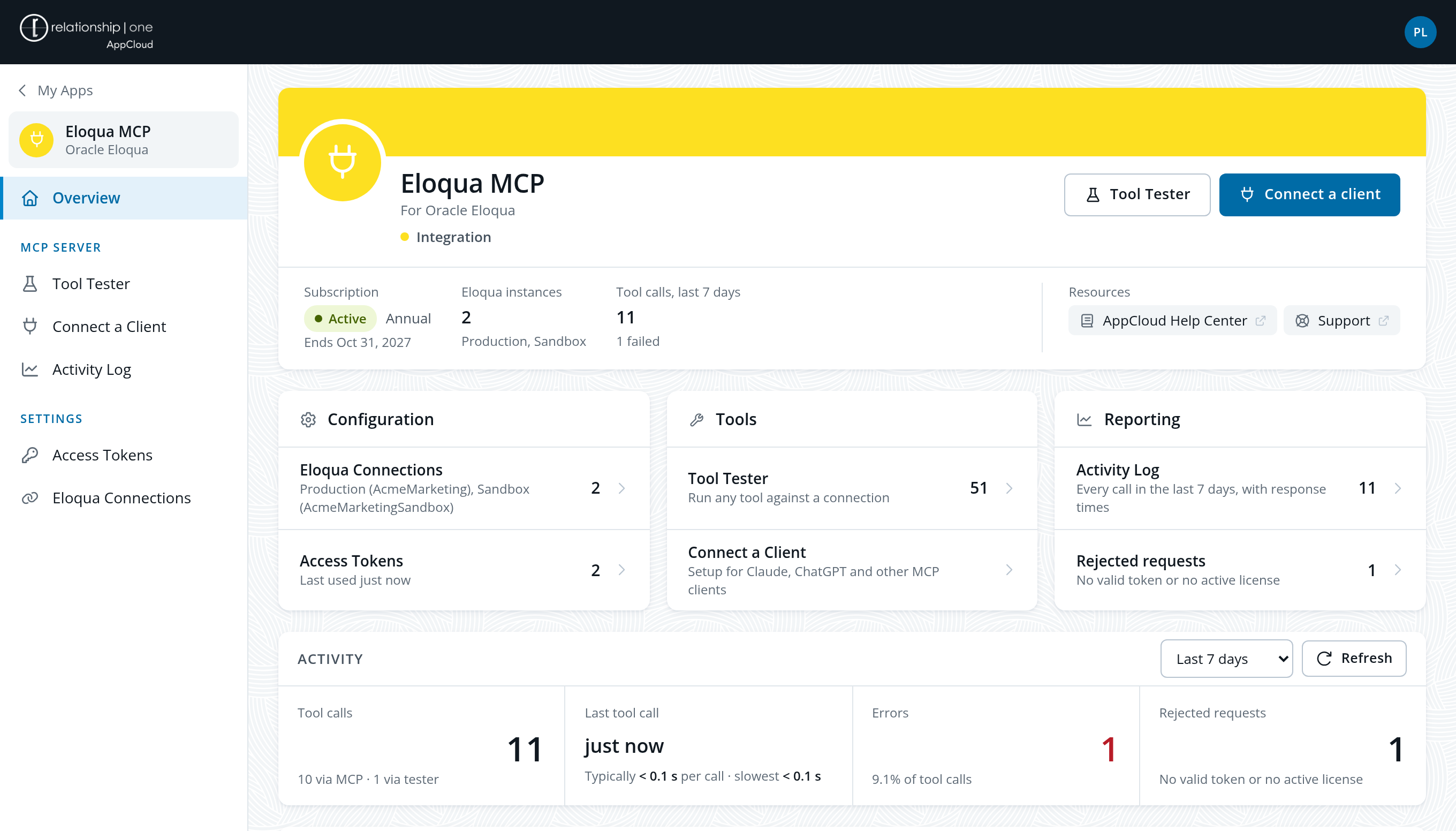
The Overview page shows where you stand: your subscription, your Eloqua connections, your active tokens and recent activity. You can run any tool from the Tool Tester page before you connect an assistant.
Using the App
Once your assistant is connected:
- What You Can Ask shows the requests that work well, from finding an asset to a campaign QA with a PDF.
- Building and Editing Drafts covers turning on write tools and what your assistant can build.
- Connection Settings explains the naming convention and the contact fields for each connection.
- Activity Log and Tool Tester shows how to review what happened and try a tool yourself.
- Security and Data Handling explains access, limits and what is recorded.
- Tool Reference lists every tool.
- Eloqua MCP FAQs answers common questions.
Built-In Guardrails
- Read-only by default. A new Eloqua connection can only read. The tools that create or change drafts stay off until someone in your Organization turns on Write tools for that connection. See Building and Editing Drafts.
- Drafts only. Changes are limited to emails, landing pages, forms, campaigns, segments, field merges and folders. The app can't write contacts or run bulk imports.
- No anonymous access. Every request needs an access token for your Organization, and you can revoke a token at any time.
- Limited contact data. Contact lookups take an exact email address or contact ID, with no wildcard search, and return only the fields set in the Connection Settings (a small set by default). Form submissions and custom object records are capped at 50 rows per call.
- Everything is logged. Every tool call appears in the Activity Log with the tool, the Eloqua connection, the timing and the outcome.
Updated about 4 hours ago