

Connection Settings
Each Eloqua connection has its own settings: a naming convention and the contact fields a contact lookup returns. Nothing is shared across connections, so Production and Sandbox can follow different rules.
Open a Connection's Settings
-
In the Eloqua MCP app, click Eloqua Connections under Settings.
-
Click the sliders icon at the end of the connection's row.
The Settings for card opens below the list. Its heading shows how many settings you've changed, for example "2 of 7 customized", or "all defaults".
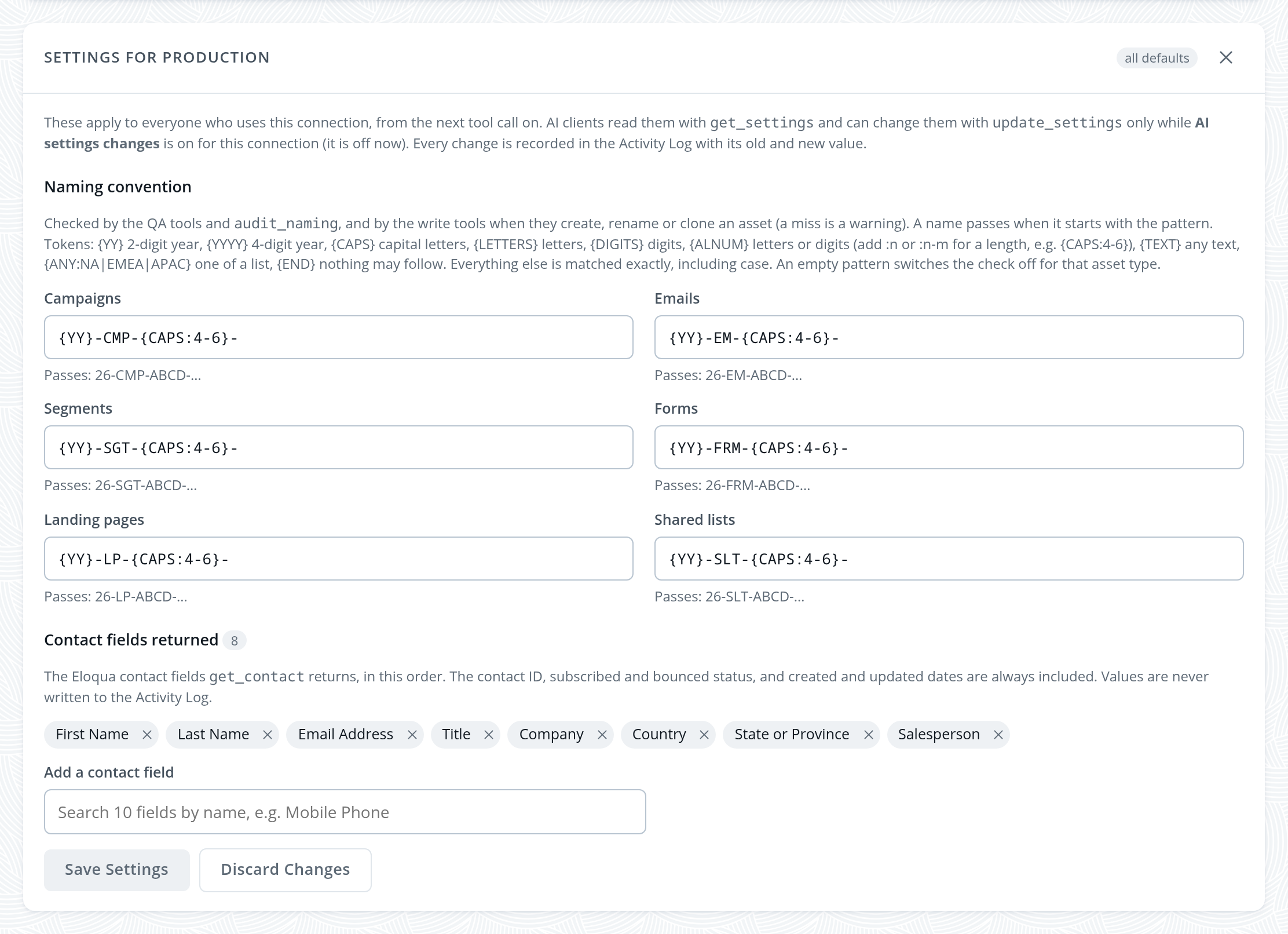
Settings apply to everyone who uses the connection, starting with the next tool call. Any member of your Organization can change them, and every change is recorded in the Activity Log with its old and new value.
Naming Convention
There is one naming pattern per asset type. The patterns are used in three places:
- The QA tools flag asset names that don't match.
- The naming audit reports how many recently updated assets comply.
- The write tools warn when a new, renamed or copied asset doesn't match. The asset is still saved.
These are the defaults:
| Asset type | Default pattern | A name that passes |
|---|---|---|
| Campaigns | {YY}-CMP-{CAPS:4-6}- | 26-CMP-INTL-Spring Launch |
| Emails | {YY}-EM-{CAPS:4-6}- | 26-EM-INTL-Spring Launch Invite |
| Segments | {YY}-SGT-{CAPS:4-6}- | 26-SGT-INTL-Spring Launch Audience |
| Forms | {YY}-FRM-{CAPS:4-6}- | 26-FRM-INTL-Spring Launch Registration |
| Landing pages | {YY}-LP-{CAPS:4-6}- | 26-LP-INTL-Spring Launch Registration |
| Shared lists | {YY}-SLT-{CAPS:4-6}- | 26-SLT-INTL-Spring Launch Registrants |
How Patterns Work
A pattern is a template. A name passes when it starts with the pattern, so anything can follow unless you end the pattern with {END}. These are the tokens you can use:
{YY}- a two-digit year, such as26{YYYY}- a four-digit year, such as2026{CAPS}- capital letters{LETTERS}- letters in either case{DIGITS}- digits{ALNUM}- letters or digits{TEXT}- any text. You can use it up to three times in a pattern.{ANY:NA|EMEA|APAC}- one item from the list{END}- nothing may follow. It must be the last thing in the pattern.
Add a length to {CAPS}, {LETTERS}, {DIGITS} or {ALNUM} with a colon: {CAPS:3} means exactly three capital letters and {CAPS:4-6} means four to six. Without a length, the token matches one or more.
Everything outside the braces is matched exactly, including case. A pattern can be up to 200 characters long.
For example, {YY}-CMP-{ANY:NA|EMEA|APAC}- accepts 26-CMP-EMEA-Spring Launch and rejects 26-CMP-LATAM-Spring Launch.
Change a Pattern
-
Type the new pattern in the field for that asset type. As you type, the line under the field shows a name that passes, such as "Passes: 26-CMP-ABCD-…", or explains what's wrong with the pattern.
-
To stop checking names for an asset type, clear the field. The line under it reads "No naming check for this asset type."
-
Click Save Settings.
You'll see how many settings were saved, and the tools use the new values from the next call. Click Use default next to a field to put its default back, or Discard Changes to drop everything you haven't saved.
Contact Fields Returned
This is the list of Eloqua contact fields your assistant gets when it looks up a contact. A new connection returns eight fields: first name, last name, email address, title, company, country, state or province, and salesperson.
The contact ID, the subscribed and bounced status, and the created and updated dates are always included.
To change the list:
-
Under Add a contact field, type part of a field's name and pick it from the matches. Custom fields are marked "custom".
-
Click the x on a field to remove it.
-
Click Save Settings.
Fields are returned in the order shown. Every field is checked against your Eloqua instance when you save. Use default puts the original eight back.
If the field list can't be loaded from Eloqua, type the field's internal name, such as C_MobilePhone, and press Enter.
Add only what people needEvery field on this list is returned to anyone whose assistant looks up a contact through this connection. Leave out fields your team doesn't need in a chat. Field values are never written to the Activity Log.
If you remove every field, a lookup returns only the contact ID, status and dates.
Let Your Assistant Change Settings
Your assistant can always read a connection's settings, so it can propose names that fit your convention. Whether it can change them is up to you.
The AI settings changes switch is on the Eloqua Connections list, one per connection, and it's off by default.
| Switch | What your assistant can do |
|---|---|
| Off | Read the settings and preview a change. Only a person can save one, on the settings card. |
| On | Change the naming patterns and the contact field list. The assistant is told to show you the old and new value and get a yes first. |
Here are a few things you can ask:
- "What naming convention does Production use?"
- "Preview changing the email pattern to
{YY}-EM-{ANY:NA|EMEA|APAC}-." - "Put the campaign naming pattern back to the default."
A settings change never touches anything in Eloqua. It changes how the Eloqua MCP tools check names and which contact fields they return.
Troubleshooting
| What you see | What to do |
|---|---|
| "AI settings changes are off for connection …" | Switch AI settings changes on for that connection, or change the setting yourself on the settings card. |
| "Unknown token" | The pattern uses a token that doesn't exist. Use the tokens listed above. |
"{END} must be the last thing in the pattern" | Move {END} to the end of the pattern, or remove it. |
| "not a contact field in this Eloqua instance" | The field name wasn't found. Search for the field by its display name, or check its internal name in Eloqua. |
| "This connection stores other settings this app can't safely change." | Contact support. |
Updated about 4 hours ago