

Add an Eloqua Connection
An Eloqua connection is the Eloqua login the Eloqua MCP tools use. Every tool returns an error until you add one. You can add several, for example one for production and one for a sandbox.
Before You Begin
You need an Eloqua user for the app to sign in with:
- Use a dedicated API user if you can. A personal login works, but the connection breaks when that person leaves or changes their password.
- The user needs API access in Eloqua and must be able to sign in with a user name and password. A user that can only sign in through single sign-on (SSO) won't work.
- The tools see what that user sees. Eloqua applies the user's own permissions to everything the app reads.
- For performance reporting, the user also needs access to Eloqua's Reporting API (the Analyzer license). Without it, the reporting tools return an error that says so, and the other tools keep working.
IP AllowlistingIf you have Eloqua IP allowlisting enabled, please add AppCloud IPs to your allowlist - 44.236.213.84 and 44.238.209.213.
Add a Connection
-
In the Eloqua MCP app, click Eloqua Connections under Settings.
-
Click Add Connection.
-
Fill in the form:
Field What to enter Name A name your team will recognize, such as ProductionorSandbox. Names must be unique in your Organization and can't be only digits.Company (site) Your Eloqua company name, exactly as you type it on the Eloqua login page. User name The Eloqua user name. This is not always the user's email address. Password The user's Eloqua password. -
Click Verify & Save.
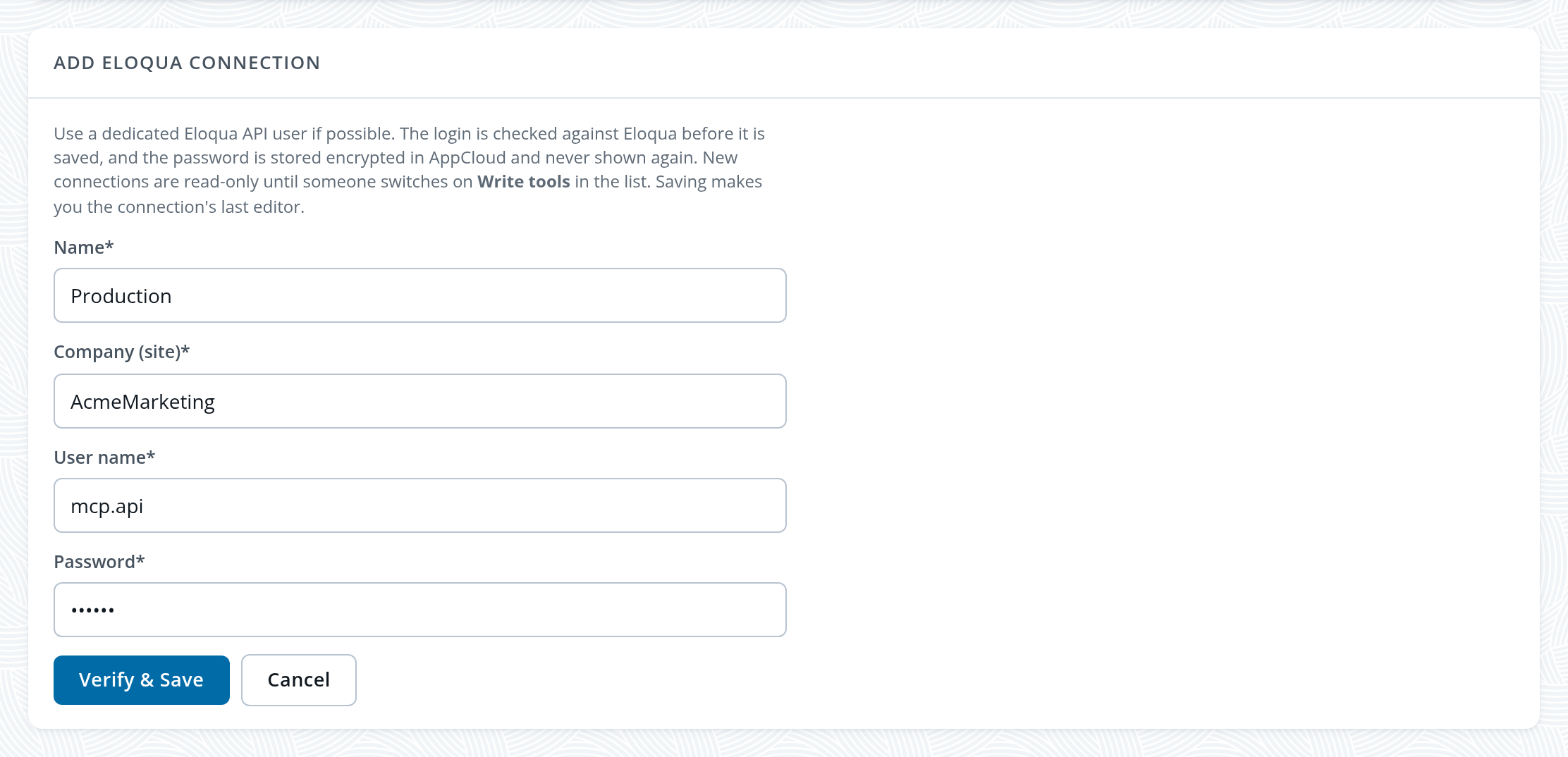
The app checks the login with Eloqua before it saves anything. When the login is accepted, you'll see "Verified with Eloqua and saved." and the connection appears in the list. The password is stored encrypted in AppCloud and is never shown again.
New connections are read-onlyA new connection starts with Write tools and AI settings changes switched off. Your AI assistant can read from Eloqua through it, but can't create or change anything until you turn those switches on. See Building and Editing Drafts and Connection Settings.
Manage Your Connections
The list shows each connection's name, company, user name, who last edited it and when. Use the icons at the end of a row to:
- Test - check the stored login against Eloqua. Handy after a password change.
- Settings - open the connection's naming patterns and contact fields. See Connection Settings.
- Edit - change the name, company, user name or password. Leave Password blank to keep the stored one. The login is verified again when you save.
- Delete - remove the connection. Click the trash icon, then Delete to confirm. AI assistants can no longer use it.
Use More Than One Connection
Add a connection for each Eloqua instance or login you want your assistant to reach. Each one has its own switches and settings.
With more than one connection, your assistant asks which Eloqua instance you mean before it runs a tool. It never picks one on its own. Clear names make that question easy to answer.
Troubleshooting
"Eloqua did not accept that company, user name and password." Eloqua rejected the login. Check that:
- The company name matches your Eloqua login page exactly
- You entered the Eloqua user name, not the email address
- There is no space before or after any value
- The user can sign in with a password (not SSO only) and has API access
- If your Eloqua instance restricts sign-ins by IP address, the AppCloud IPs above are on your allowlist
"Another Eloqua connection is already called …" Connection names must be unique in your Organization. Choose a different name.
Tools say Eloqua rejected the stored login. The Eloqua user's password was changed or has expired. Click Edit on the connection and enter the new password.
If you still can't connect, contact support.
Updated about 4 hours ago